

Grounding
Copyright 2025 Google LLC.
Gemini API: Getting started with information grounding for Gemini models

In this notebook you will learn how to use information grounding with Gemini models.
Information grounding is the process of connecting these models to specific, verifiable information sources to enhance the accuracy, relevance, and factual correctness of their responses. While LLMs are trained on vast amounts of data, this knowledge can be general, outdated, or lack specific context for particular tasks or domains. Grounding helps to bridge this gap by providing the LLM with access to curated, up-to-date information.
Here you will experiment with:
- Grounding information using Google Search grounding
- Grounding real-world information using Google Maps grounding
- Adding YouTube links to gather context information to your prompt
- Using URL context to include website, pdf or image URLs as context to your prompt
Set up the SDK and the client
Install SDK
This guide uses the google-genai Python SDK to connect to the Gemini models.
Set up your API key
To run the following cell, your API key must be stored it in a Colab Secret named GOOGLE_API_KEY. If you don't already have an API key, or you're not sure how to create a Colab Secret, see the Authentication  quickstart for an example.
Select model and initialize SDK client
Select the model you want to use in this guide, either by selecting one in the list or writing it down. Keep in mind that some models, like the 2.5 ones are thinking models and thus take slightly more time to respond (cf. thinking notebook for more details and in particular learn how to switch the thiking off).
Use Google Search grounding
Google Search grounding is particularly useful for queries that require current information or external knowledge. Using Google Search, Gemini can access nearly real-time information and better responses.
To enable Google Search, simply add the google_search tool in the generate_content's config that way:
    config={
      "tools": [
        {
          "google_search": {}
        }
      ]
    },
Search Query: ['latest Indian Premier League match and winner', 'when did IPL 2025 finish', 'IPL 2024 final match and winner']
Search Pages: olympics.com, wikipedia.org, thehindu.com, olympics.com, skysports.com, wikipedia.org, thehindu.com
You can see that running the same prompt without search grounding gives you outdated information:
For more examples, please refer to the dedicated notebook .
Use Google Maps grounding
Google Maps grounding allows you to easily incorporate location-aware functionality into your applications. When a prompt has context related to Maps data, the Gemini model uses Google Maps to provide factually accurate and fresh answers that are relevant to the specified location or general area.
To enable grounding with Google Maps, add the google_maps tool in the config argument of generate_content, and optionally provide a structured location in the tool_config.
client.models.generate_content(
    ...,
    config=types.GenerateContentConfig(
      # Enable the tool.
      tools=[types.Tool(google_maps=types.GoogleMaps())],
      # Provide structured location.
      tool_config=types.ToolConfig(retrieval_config=types.RetrievalConfig(
            lat_lng=types.LatLng(
                latitude=34.050481, longitude=-118.248526))),
    )
)
Search Query: ['cafes with flat white near me']
All grounded outputs require sources to be displayed after the response text. This code snippet will display the sources.
The response also includes data you can use to assemble in-line links. See the Grounding with Google Search docs for an example of this.
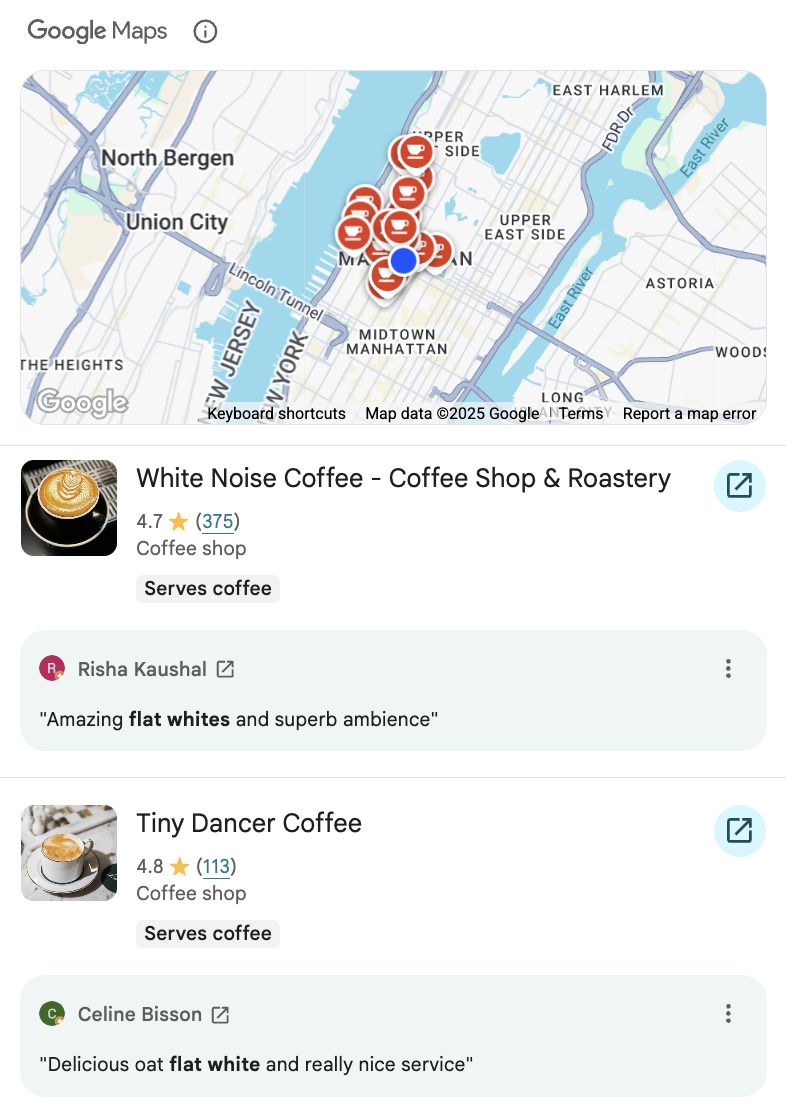
Render the contextual Google Maps widget
If you are building a web-based application, you can add an interactive widget that includes a map view, the contextual location, the places Gemini considered in the query, and review snippets.
To load the widget, perform all of the following steps.
- Acquire a Google Maps API key, enabled for the Places API and the Maps JavaScript API,
- Request the widget token in your request (with
GoogleMaps(enable_widget=True)), - Load the Maps JavaScript API and enable the Places library,
- Render the
<gmp-place-contextual/>element, settingcontext-tokento the value of thegoogle_maps_widget_context_tokenreturned in the Gemini API response.
Note that generating a widget can add additional latency to the response, so it is recommended that you do not enable the widget if you are not displaying it.
Assuming you have a Google Maps API key with both APIs enabled, the following code shows one way to render the widget.
<IPython.core.display.HTML object>
Running and rendering the above code will require a Maps API key. Once you have it working, the widget will look like this.
Grounding with YouTube links
You can directly include a public YouTube URL in your prompt. The Gemini models will then process the video content to perform tasks like summarization and answering questions about the content.
This capability leverages Gemini's multimodal understanding, allowing it to analyze and interpret video data alongside any text prompts provided.
You do need to explicitly declare the video URL you want the model to process as part of the contents of the request using a FileData part. Here a simple interaction where you ask the model to summarize a YouTube video:
But you can also use the link as the source of truth for your request. In this example, you will first ask how Gemma models can help on chess games:
Now your answer is more insightful for the topic you want, using the knowledge shared on the video and not necessarily available on the model knowledge.
Grounding information using URL context
The URL Context tool empowers Gemini models to directly access and process content from specific web page URLs you provide within your API requests. This is incredibly interesting because it allows your applications to dynamically interact with live web information without needing you to manually pre-process and feed that content to the model.
URL Context is effective because it allows the models to base its responses and analysis directly on the content of the designated web pages. Instead of relying solely on its general training data or broad web searches (which are also valuable grounding tools), URL Context anchors the model's understanding to the specific information present at those URLs.
Process website URLs
If you want Gemini to specifically ground its answers thanks to the content of a specific website, just add the urls in your prompt and enable the tool by adding it to your config:
config = {
  "tools": [
    {
      "url_context": {}
    }
  ],
}
You can add up to 20 links in your prompt.
You can see the status of the retrival using url_context_metadata:
url_metadata=[UrlMetadata(
  retrieved_url='https://ai.google.dev/gemini-api/docs/models',
  url_retrieval_status=<UrlRetrievalStatus.URL_RETRIEVAL_STATUS_SUCCESS: 'URL_RETRIEVAL_STATUS_SUCCESS'>
)]
Add PDFs by URL
Gemini can also process PDFs from an URL. Here's an example:
Add images by URL
Gemini can also process images from an URL. Here's an example:
Mix Search grounding and URL context
The different tools can also be use in conjunction by adding them both to the config. It's a good way to steer Gemini in the right direction and then let it do its magic using search grounding.
Next steps
- For more details about using Google Search grounding, check out the Search Grounding cookbook.
- If you are looking for another scenarios using videos, take a look at the Video understanding cookbook.
Also check the other Gemini capabilities that you can find in the Gemini quickstarts.