

AutoML Train Multiple Models In Parallel
Goal: Train a model using AutoML functionality!
This notebook's CI test result for us-west-2 is as follows. CI test results in other regions can be found at the end of the notebook.
A popular approach to solve a machine learning problem is to try multiple approaches for training a model by running multiple algorithms on a dataset. Based on initial analysis, you can decide which algorithm to use for training and tuning the actual model. However, each algorithm can have specific feature requirements such as data must be numeric, missing values must be addressed before the training, etc. Performing algorithm specific feature engineering tasks can take time. Such a project can be shortened by running an AutoML algorithm that performs feature engineering tasks such as one-hot encoding, generalization, addressing missing values, automatically and then trains models using multiple algorithms in parallel.
AWS Marketplace contains AutoML algorithms such as AutoGluon-Tabular which solve regression/classification ML problems by ensembling multiple models and stacking them in multiple layers. To try it yourself, See the sample notebook here
This notebook demonstrates how to use such an AutoML algorithm offerd by H2O.ai in AWS Marketplace for machine learning.
AutoML from H2O.ai trains one or more of following types of models in parallel:
- XGBoost GBM (Gradient Boosting Machine)
- GLM
- default Random Forest (DRF)
- Extremely Randomized Forest (XRT)
- Deep Neural Nets
Once these models have been trained, it also creates two stacked ensemble models:
- An ensemble model created using all the models.
- Best of family ensemble model created using models that performed best in each class/family.
For more information on how H2O.ai's AutoML works, see FAQ section of H2O.ai's documentation.
Contents:
- Step 1: Subscribe to AutoML algorithm from AWS Marketplace
- Step 2: Step 2 : Set up environment
- Step 3: Prepare and upload data
- Step 4: Train a model
- Step 5: Deploy the model and perform a real-time inference
- Step 6: Clean-up
Compatibility
This notebook is compatible only with H2O-3 Automl Algorithm from AWS Marketplace and an AWS Marketplace subscription is required to successfully run this notebook.
Usage instructions
You can run this notebook one cell at a time (By using Shift+Enter for running a cell).
Step 1: Subscribe to AutoML algorithm from AWS Marketplace
- Open H2O-3 Automl Algorithm listing from AWS Marketplace
- Read the Highlights section and then product overview section of the listing.
- View usage information and then additional resources.
- Note the supported instance types and specify the same in the following cell.
- Next, click on Continue to subscribe.
- Review End user license agreement, support terms, as well as pricing information.
- Next, "Accept Offer" button needs to be clicked only if your organization agrees with EULA, pricing information as well as support terms. Once Accept offer button has been clicked, specify compatible training and inference types you wish to use.
Notes:
- If Continue to configuration button is active, it means your account already has a subscription to this listing.
- Once you click on Continue to configuration button and then choose region, you will see that a product ARN will appear. This is the algorithm ARN that you need to specify in your training job. However, for this notebook, the algorithm ARN has been specified in src/algorithm_arns.py file and you do not need to specify the same explicitly.
Step 2 : Set up environment
Next, configure the S3 bucket name.
Next, specify your name to tag resources you create as part of this experiment.
Step 3: Prepare and upload data
Now that you have identified the algorithm you want to run, you need to prepare data that is compatible with your algorithm. This notebook demonstrates AutoML using the Iris data set (Dua, D. and Graff, C. (2019). UCI Machine Learning Repository. Irvine, CA: University of California, School of Information and Computer Science). Note that we will be adding a missing value to the first row to demonstrate that AutoML would take care of missing values.
Background - The Iris dataset
The Iris data set contains 150 rows of data, comprising 50 samples from each of three related Iris species: Iris setosa, Iris virginica, and Iris versicolor.
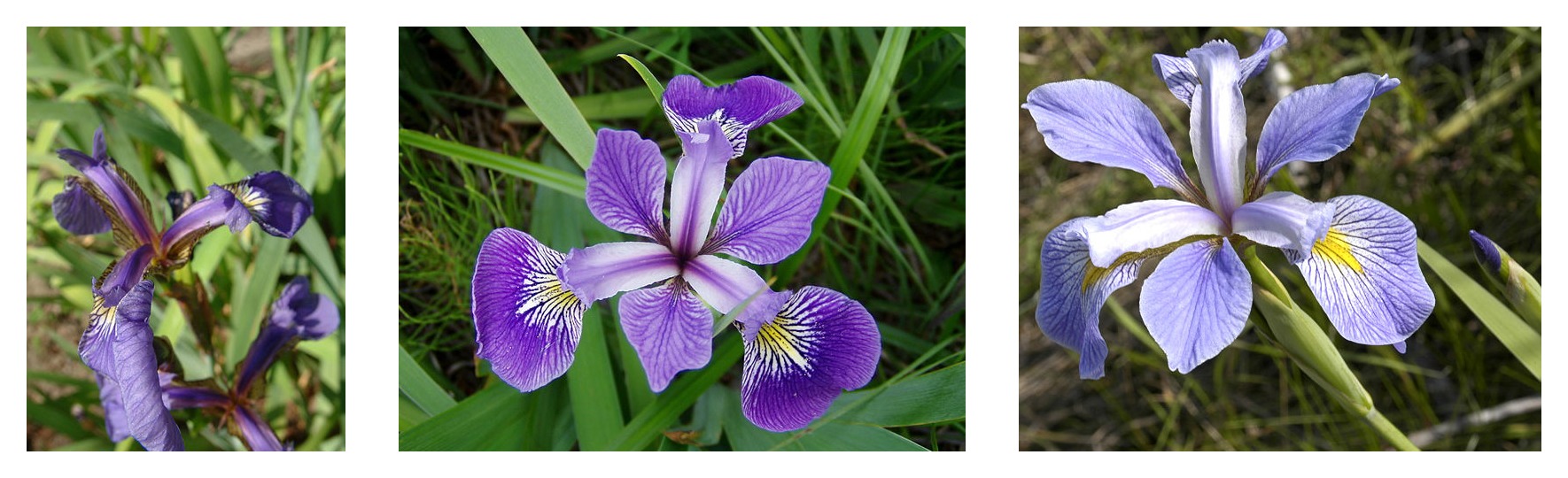 From left to right,
Iris setosa (by
Radomil, CC BY-SA 3.0),
Iris versicolor (by
Dlanglois, CC BY-SA 3.0),
and Iris virginica
(by Frank Mayfield, CC BY-SA
2.0).
From left to right,
Iris setosa (by
Radomil, CC BY-SA 3.0),
Iris versicolor (by
Dlanglois, CC BY-SA 3.0),
and Iris virginica
(by Frank Mayfield, CC BY-SA
2.0).
Each row contains the following data for each flower sample: sepal length, sepal width, petal length, petal width, and flower species.
| Sepal Length | Sepal Width | Petal Length | Petal Width | Species |
|---|---|---|---|---|
| 5.1 | 3.5 | 1.4 | 0.2 | setosa |
| 4.9 | 3.0 | 1.4 | 0.2 | setosa |
| 4.7 | 3.2 | 1.3 | 0.2 | setosa |
| … | … | … | … | … |
| 7.0 | 3.2 | 4.7 | 1.4 | versicolor |
| 6.4 | 3.2 | 4.5 | 1.5 | versicolor |
| 6.9 | 3.1 | 4.9 | 1.5 | versicolor |
| … | … | … | … | … |
| 6.5 | 3.0 | 5.2 | 2.0 | virginica |
| 6.2 | 3.4 | 5.4 | 2.3 | virginica |
| 5.9 | 3.0 | 5.1 | 1.8 | virginica |
Let us look at the sample training data
Let us add a header and a copy of first line to demonstrate that the AutoML listing takes care of missing values as well.
When training large models with huge amounts of data, you'll typically use big data tools, like Amazon Athena, AWS Glue, or Amazon EMR, to create your data in S3. For the purposes of this example, we're using the classic Iris dataset, which the notebook downloads from the source.
We can use use the tools provided by the Amazon SageMaker Python SDK to upload the data to an S3 bucket.
Step 4: Train a model
Next, let us train a model.
Review the leaderboard available in the log to understand how each of the top 10 models performed. By default, the metrics are based on 5-fold cross validation.
Step 5: Deploy the model and perform a real-time inference
Let us view a sample from original training data and create a sample payload based on one of the entries.
Let us pick a row, modify values slightly, and then perform an inference.
Now that data has been prepared, let us perform a real-time inference.
Congratulations!, you have successfully performed a real-time inference on the model you trained using H2O.ai's AutoML algorithm! Check whether it predicted the correct class.
Step 6: Clean-up
Once you have finished performing predictions, you can delete the endpoint to avoid getting charged for the same.
Finally, if the AWS Marketplace subscription was created just for the experiment and you would like to unsubscribe to the product, here are the steps that can be followed. Before you cancel the subscription, ensure that you do not have any deployable model created from the model-package or using the algorithm. Note - You can find this by looking at container associated with the model.
Steps to un-subscribe to product from AWS Marketplace:
- Navigate to Machine Learning tab on Your Software subscriptions page
- Locate the listing that you would need to cancel subscription for, and then Cancel Subscription can be clicked to cancel the subscription.
This notebook demonstrated how to perform AutoML with Amazon Sagemaker using H2O.ai's AutoML listing from AWS Marketplace.
Notebook CI Test Results
This notebook was tested in multiple regions. The test results are as follows, except for us-west-2 which is shown at the top of the notebook.