

Bedrock Tracing And Evals Tutorial


Instrumenting AWS Bedrock client with OpenInference and Phoenix
In this tutorial we will trace model calls to AWS Bedrock using OpenInference. The OpenInference Bedrock tracer instruments the Python boto3 library, so all invoke_model calls will automatically generate traces that can be sent to Phoenix.
ℹ️ This notebook requires a valid AWS configuration and access to AWS Bedrock and the claude-v2 model from Anthropic & an OpenAI API key for LLM as a Judge Evaluation.
1. Install dependencies and set up OpenTelemetry tracer
First install dependencies
Import libraries
The following env variables will allow you to connect to an online instance of Arize Phoenix. You can get an API key on the Phoenix website.
If you'd prefer to self-host Phoenix, please see instructions for self-hosting. The Cloud and Self-hosted versions are functionally identical.
Here we're configuring the OpenTelemetry tracer by adding two SpanProcessors. The first SpanProcessor will simply print all traces received from OpenInference instrumentation to the console. The second will export traces to Phoenix so they can be collected and viewed.
2. Instrumenting Bedrock clients
Now, let's create a boto3 session. This initiates a configured environment for interacting with AWS services. If you haven't yet configured boto3 to use your credentials, please refer to the official documentation. Or, if you have the AWS CLI, run aws configure from your terminal.
Clients created using this session configuration are currently uninstrumented. We'll make one for comparison.
Now we instrument Bedrock with our OpenInference instrumentor. All Bedrock clients created after this call will automatically produce traces when calling invoke_model.
3. Calling the LLM and viewing OpenInference traces
Calling invoke_model using the uninstrumented_client will produce no traces, but will show the output from the LLM.
LLM calls using the instrumented_client will print traces to the console! By configuring the SpanProcessor to export to a different OpenTelemetry collector, your OpenInference spans can be collected and analyzed to better understand the behavior of your LLM application.
4. Collect all your Traces & Data
Use the instrumented_client to collect all your traces; This example uses a set of trivia questions.
5. Setup & Run your Eval
After importing your traces as a dataframe, modify your columns to fit into your eval template. Run llm_classify() to classify each input row of the dataframe using an LLM.
6. Log your traces into Phoenix
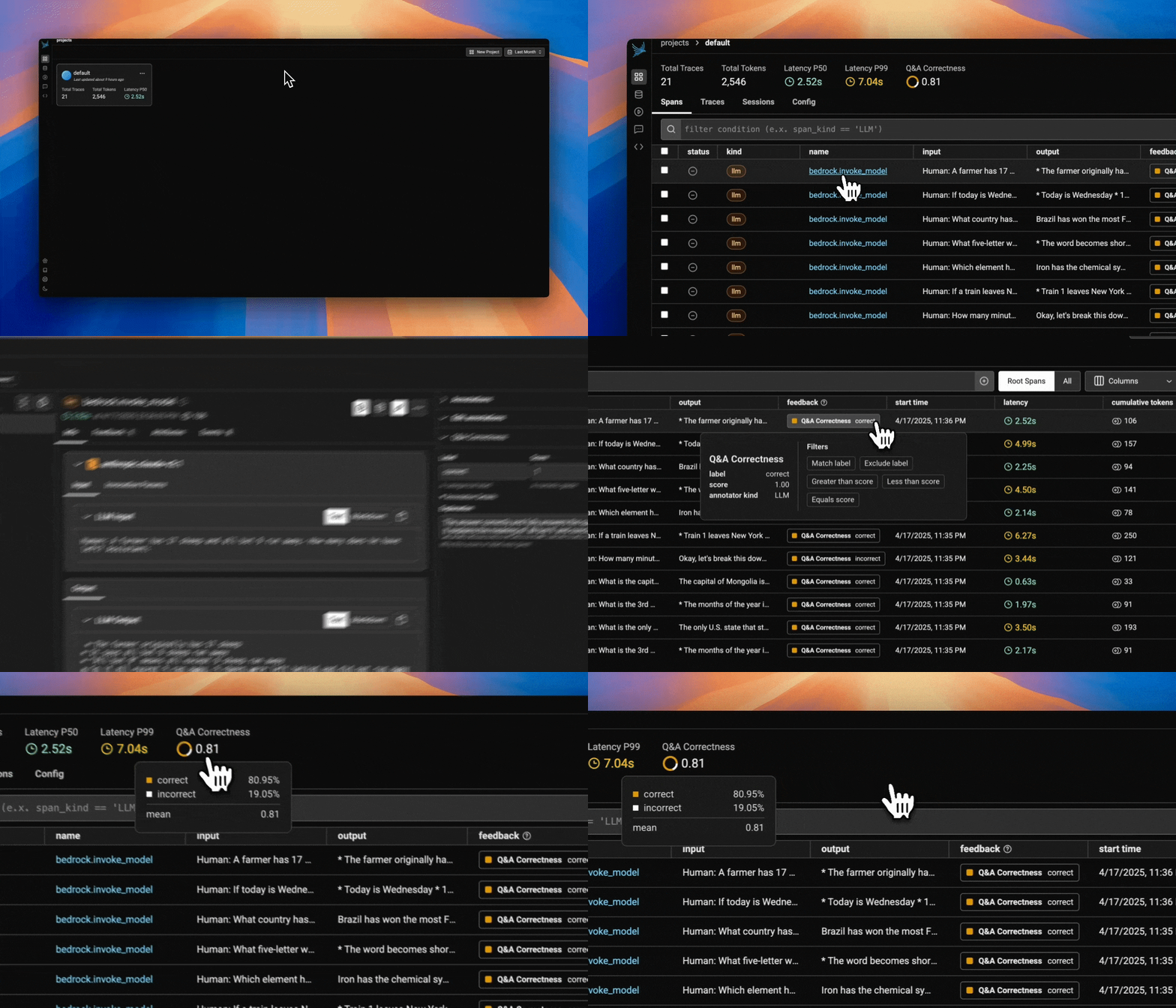
More information about our instrumentation integrations, OpenInference can be found in our documentation